
Last month, a friend of mine opened a small plant shop in a strip mall. She wanted to announce the grand opening on social media, but she was terrified of making a video. She is not a natural performer, she does not own professional lighting, and she did not want to spend a hundred dollars on an editing app.
She asked me if AI could just make the video for her. I told her the truth: AI cannot make the whole video. If you let an AI generate the script, the voice, and the visuals, you will end up with a slick, hollow video that looks like it was made by a faceless corporation. People scroll past those videos instantly. They can smell the lack of humanity from a mile away.
But AI can do the heavy lifting on the parts that feel overwhelming. It can help you write a clear script, generate beautiful background images, and even help you find the right music. The secret is knowing which parts to automate and which parts to keep human. Here is the exact workflow I gave her, and the video she made ended up driving forty people to her shop on opening day.
The "Corporate Robot" Trap
Before we get into the workflow, we need to talk about what not to do. If you search for "AI business video" online, you will find a lot of tools that promise to create a video from a single text prompt. Do not use these for your small business.
The Uncanny Virtual Avatar
Some tools will generate a virtual human—an AI avatar—to read your script to the camera. While the technology is impressive, it almost always lands in the uncanny valley. The eyes blink a fraction of a second too slowly, the facial expressions do not match the tone of the words, and the lip-syncing is just slightly off. For a small business, trust is your most valuable currency. An AI avatar immediately tells the viewer, "I did not care enough to show my real face."
The Generic AI Voiceover
The default AI voices sound like a GPS navigation system. They are fine for reading a list of ingredients, but they are terrible for delivering an emotional announcement. Even the best AI voices lack the subtle pauses, breaths, and imperfections that make a human voice trustworthy.
The fix: Use AI for the background and the planning, but use your own voice and your own face for the core message.

The 1-Hour Workflow for a 60-Second Announcement
Here is how to make a video that feels real, without spending all day on it.
Step 1: Write a Simple Script (10 Minutes)
Do not ask an AI to write the script from scratch. It will give you something that sounds like a press release. Instead, write it yourself, but use an AI to polish it.
Write down what you want to say in three bullet points:
What is happening? (e.g., "We are opening a new plant shop.")
Why should they care? (e.g., "We have rare houseplants you cannot find at the big box stores.")
What is the call to action? (e.g., "Come visit us this Saturday from 9 to 5.")
Once you have your bullet points, paste them into an AI and say: "Make this sound conversational and friendly, like I am talking to a neighbor. Keep it under 60 seconds." Then, read the AI's version out loud. If it does not sound like something you would actually say, change the words.
Step 2: Generate the B-Roll (15 Minutes)
You do not need to film every single thing. Use an AI image generator to create beautiful, static background images or short video clips.
For the plant shop, we generated three AI images: a close-up of a rare monstera leaf, a wide shot of a sunlit storefront, and a cozy shot of a watering can on a wooden table.
Because these are just background visuals, they do not need to be perfectly consistent with your real store. They just need to set the mood. You can use a simple app like CapCut or Canva to pan and zoom across these static images to create the feeling of motion.
Step 3: Record Your Own Voice (10 Minutes)
This is the most important part. Find a quiet room, open the voice memo app on your phone, and read your script. Do not try to sound like a professional announcer. Just talk like you are explaining your business to a friend.
If you make a mistake, just pause for three seconds and start the sentence again. You can easily cut out the mistake later.
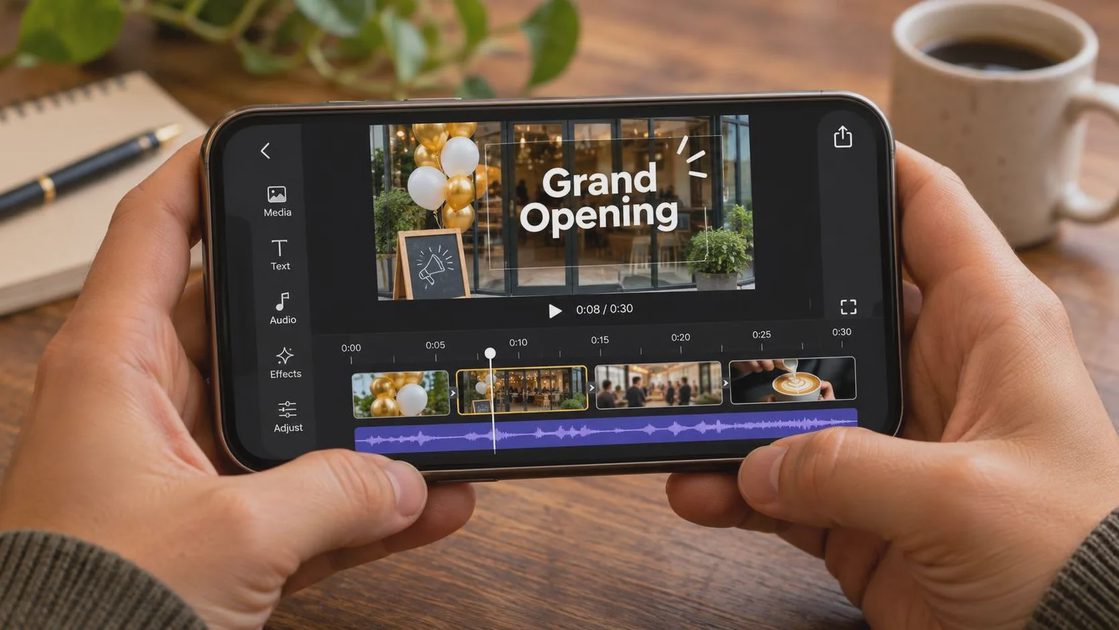
Step 4: Put It Together (25 Minutes)
Open a free editing app on your phone or computer.
Drop in your voiceover first.
Lay your AI-generated images and clips over the audio.
Add simple, large text on the screen for the most important details (the date, the address, the website).
Add a subtle, royalty-free background music track. Keep the volume very low so it does not compete with your voice.
The Human Check: What to Review Before You Post
AI can help you make the video quickly, but it cannot tell you if the video is good. You have to be the final editor. Before you post, do these three checks.
Check 1: The Spelling Test
Read every single word of text on the screen. AI does not spell-check, and it certainly cannot spell-check your own typos. If you have a date, an address, or a website URL on the screen, double-check it. A misspelled website is a lost customer.
Check 2: The "Does It Sound Like Me?" Test
Listen to the voiceover. If you recorded it yourself, you will probably hate the sound of your own voice. That is normal. Everyone hates their recorded voice. Do not let that insecurity stop you. As long as it sounds natural and clear, it is better than any AI voice.
Check 3: The Trust Factor
Watch the video as if you were a customer who has never heard of your business. Does it feel honest? Does it make you want to visit? If it feels too slick or too generic, go back and add a personal touch. Maybe a quick photo of yourself, or a small joke at the beginning.
The smallest useful version of an AI business video is not a cinematic commercial. It is a clear, friendly, 60-second message that tells people what you are doing and how to find you. Keep the first version simple, use AI to lighten the load, and let your own voice do the hard work of building trust.
For AI tool features, rules and availability, refer to their official sites.
Leave your thoughts here, too.